CAIC Mobile App

Updated for the 2026–27 winter season

Check avalanche conditions before heading into Colorado's backcountry. The CAIC app gives you access to daily avalanche forecasts, recent field observations and mountain weather from your phone. The November 2026 update makes it easier to find information for the places you plan to visit, explore nearby observations and weather stations, and submit your own observations from the field.

The update changes how you access avalanche information, not the forecasts themselves. The app provides the same danger ratings, avalanche problems and forecast discussions available on the CAIC website.

Get the app

Already use the CAIC app? This is an update to your existing app. If you have automatic updates enabled, it should update automatically. Otherwise, open the App Store or Google Play and tap Update.

What’s new

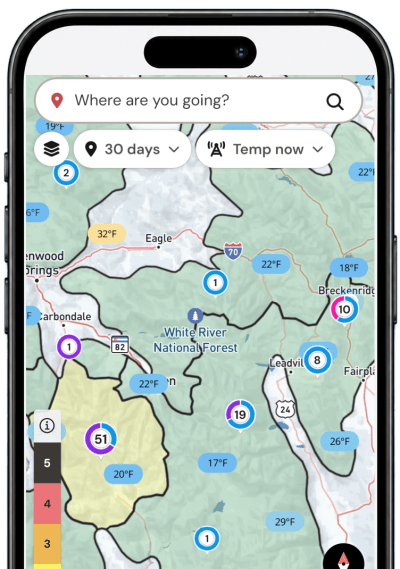
CAIC app map of central Colorado with forecast zones shaded by avalanche danger, numbered markers for recent field reports and current temperatures at weather stations.

The map is still here.

Browse color-coded forecast zones, observations and weather stations. Prefer to start there? Turn on "Open in map view" in Map settings.
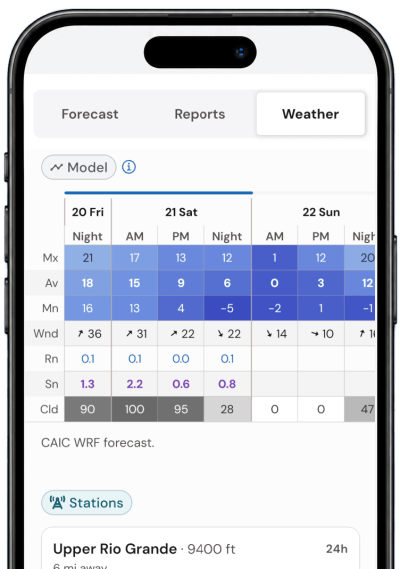
CAIC app Weather tab: a CAIC weather model table of temperature, wind, snow and cloud cover from Friday night to Sunday, above a station card showing 4 inches of new snow, 31°F and 2 mph wind.

More weather information.

See current temperature, wind and new snow from mountain weather stations, along with the CAIC weather forecast model.
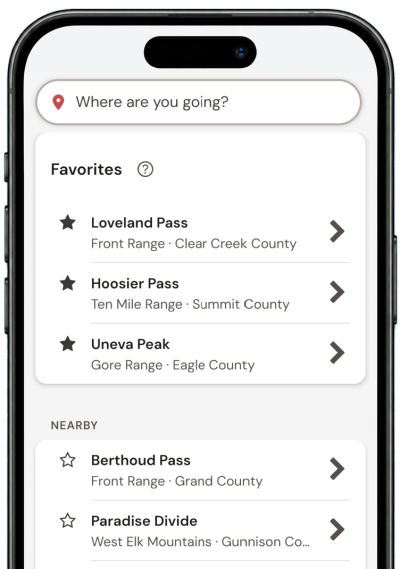
CAIC app home screen with a Favorites list of Loveland Pass, Hoosier Pass and Uneva Peak above a Nearby list that includes Berthoud Pass and Red Mountain Pass.

Save favorite places.

Keep the areas you check most often at the top of the home screen.
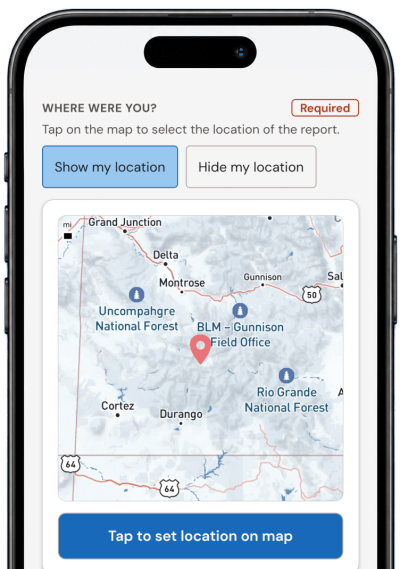
CAIC app report form asking "Where were you?" with a map of southwest Colorado, a red location pin and a button labeled "Tap to set location on map", above a Photos section.

Share what you see.

Add a location, details and photos, including while out of service, then submit when connectivity returns.

Frequently asked questions

Updating & Compatibility

Do I need to download a new app?
No. If you already have the CAIC app, you can update it. You do not need to download a separate product. New users can install it from the App Store or Google Play.
What devices are compatible with the updated app?
The updated app requires iOS 16.4 or later or Android 7.0 or later. If your phone runs an older operating system, the App Store or Google Play will not offer you the update. You can still get forecasts, observations, and weather at colorado.gov/avalanche in your phone’s browser.
Will the older app version continue working?
The update replaces the previous version in the App Store and Google Play. The older version will not receive fixes or improvements, and it may stop showing current forecasts in the future. If your phone is too old to run the updated app, use colorado.gov/avalanche in your phone’s browser instead.

Finding Forecasts, Places & Weather

The app used to open on the map. Where did it go?
Tap the Map tab (the map icon, second from the left at the bottom of the screen) to browse forecast zones and related information. You can also choose the map as your default home view.
How do I find the forecast for where I'm going?
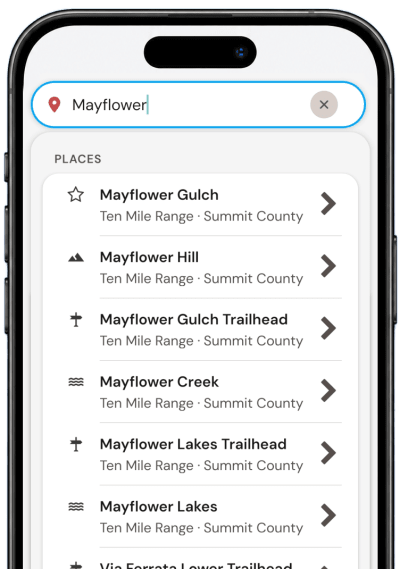
Search for a town, pass, peak or trail, or select a location on the map. Choose the area where you plan to travel, not just the nearest town, because nearby places can fall in different forecast zones.
I searched for a place and nothing came up.
Try a nearby town, pass or peak, or select the location on the map. The app uses place names from reviewed sources, including the USGS Geographic Names Information System, Colorado Parks and Wildlife’s COTREX data, and the Colorado Hut and Yurt Alliance. Local names, such as specific couloirs, may not appear if they are not included in those sources.
Why isn’t my hut or yurt listed?
Hut and yurt locations come from the Colorado Hut and Yurt Alliance, which does not include every hut in Colorado. Operators can contact the alliance about adding their location.
Where can I find weather stations?
Weather stations are available as a map layer and in the Weather section for a selected place. You can view nearby readings and open an individual station for more detail.
Can I save my favorite places?
Yes. Tap the star on a place to add it to Favorites. Saved places appear at the top of the home screen.

Offline Use & Field Observations

Can I use the app without cell service?
Forecasts and other information you viewed while connected will still be available when you lose service, even if you close the app. Load the forecast for your destination before leaving coverage. You cannot retrieve a new forecast without a connection. The app can warn you when a cached forecast has expired.
Can I submit a field observation without service?
You can prepare an observation while you’re out of service and submit it when you return to coverage.
How do I submit an observation?
Open the observation form, add the location and details of what you observed, and attach photos if available. You can also use voice-to-text to dictate your observations instead of typing. Submit your report when you're finished.
Can I still filter reports by activity?
Yes. Activity and date filters are available in the Reports tab, including for people looking for snowmobile observations.

Permissions, Development & Support

Why does the app ask for my location?
Only to list places near you and to power the current location button, which centers the map on where you are (handy when dropping a pin for an observation). If you decline, everything else works the same: Nearby may show popular areas instead, the current location button is greyed out, and you can still drop a pin by tapping the map. You can change your choice any time in your phone’s settings.
Who developed the app?
CAIC worked with Avalanche Canada, using a shared platform developed. Each organization publishes its own app, forecasts and branding.
How do I report a problem or send feedback?
Use the feedback feature in the app; go to Account > Feedback > Send Feedback. Describe what happened and attach a screenshot if possible. Including your phone model and operating system version can help the technical team investigate.

Help and feedback

Have a question, found a problem or want to suggest an improvement? Please submit feedback through the app. This keeps all reports in one place so technical teams can track and address issues consistently.

In the app, go to Account > Feedback > Send Feedback